Let me be straight with you: Every Wordpress blog on the web should have this plugin installed.

And, no, I’m also not being paid to say that. :)

W3 Total Cache is exactly what its name suggests: A total caching solution for Wordpress blogs. Wordpress is a good publishing platform and content management system (CMS) but runs into problems quickly when more than a few visitors hit your site. Even moderately busy websites can buckle under the strain of the database connection pools, stylesheets, Javascript, and HTML that Wordpress uses.

Some of the neat features that W3 Total Cache includes:

  1. “Minifies” CSS, Javascript, and HTML by removing all whitespace. To see an example, view the source code of this page. This means there is less data to send to viewers of your website which also means your website loads faster.
  2. Final output is cached and then re-served to the next viewer without having to rebuild. This means that in many circumstances, your blog might only be recreating your site dynamically once an hour. Otherwise, the cached version will be served, greatly increasing the performance and stability of your site.
  3. Uses advanced disk caching techniques to cache output or can also take advantage of Memcache technology (if supported by your server) to increase speed even more.

Before W3 Total Cache I was a fan of WP Super Cache. And before that, I used WP Cache. Neither of the latter two can hold a candle to the capabilities and caching power of W3 Total Cache.

For more information on how this plugin can increase your website’s performance, take a look at W3 Total Cache on the Wordpress Extend website.

Reblog this post [with Zemanta]

Error creating Windows Azure project in VS2008. Help!

This is not a typical blog post for this blog and I apologize for this one in advance. I’ve been working with some friends from Coffee and Code on gearing up Azure development and I need the community’s help. Your help.

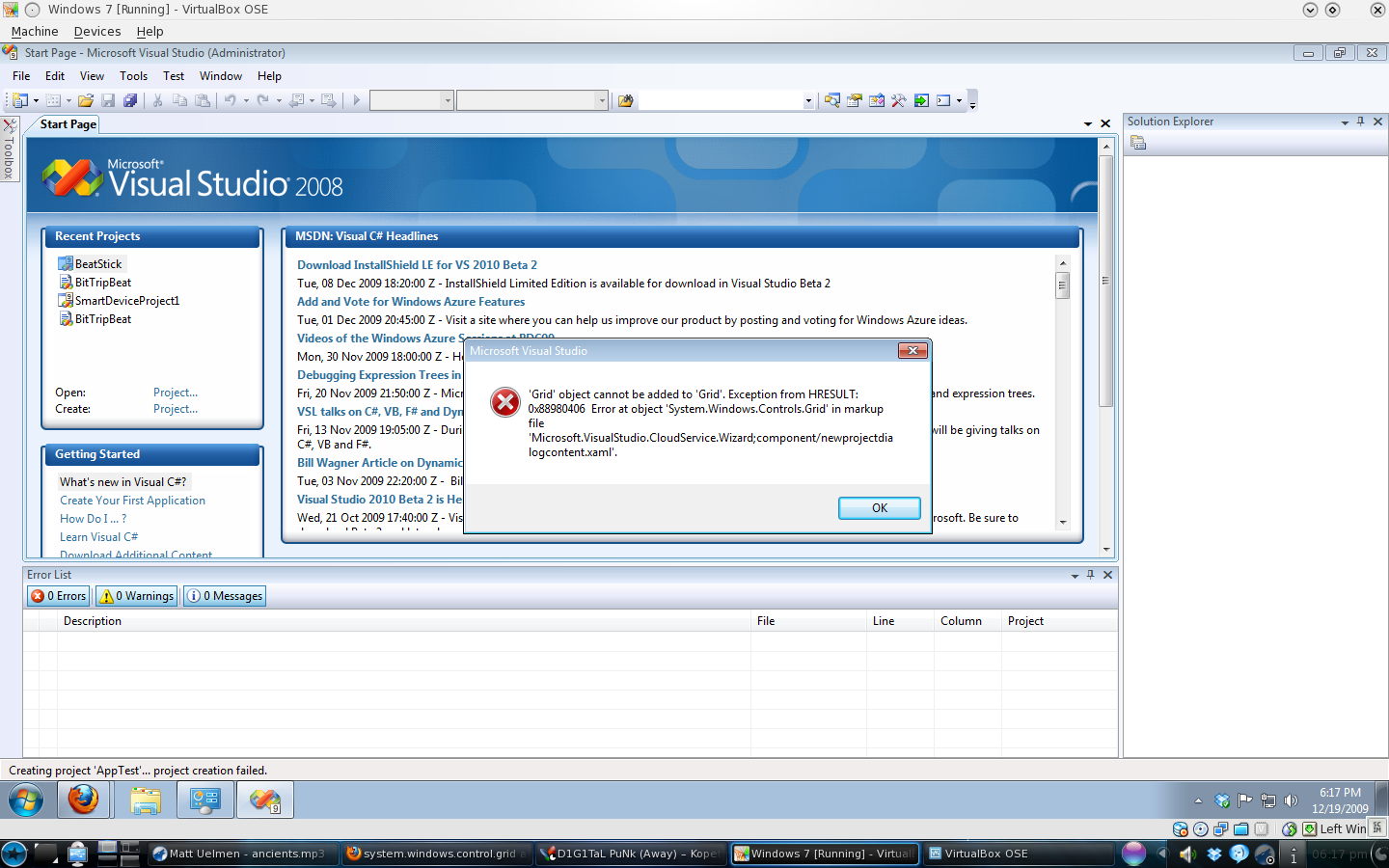
I’ve freshly installed a copy of Windows 7 in VirtualBox. I’ve installed Visual Studio 2008 Professional and its SP1. I’ve also selected .NET framework 3.5 from the Windows features menu. I’ve reinstalled DX11 and Uninstalled then reinstalled the Azure SDK and the Azure VS2008 tools.

Every time I go to create a new project I get this error:

'Grid' object cannot be added to 'Grid'.
Exception from HRESULT: 0x88980406.
Error at object 'System.Windows.Controls.Grid' in markup file.
'Microsoft.VisualStudio.CloudService.Wizard;component/newprojectdialogcontent.xaml'.

After I click OK (the only option available), Visual Studio shows the message in the status bar:

Creating project AppTest ... project creation failed.

I’ve searched on the web and asked around to find a fix for this error as I’d really like to get going on Azure development. Can anyone in the community help me?

Reblog this post [with Zemanta]
http://img.youtube.com/vi/BV3SQm3SykE/0.jpg

Example thumbnail image from YouTube

For thumbnails on the Synn Studios Inc. Synnema Video Portal I needed an easy way to grab a high-quality copy of the video thumbnails used for our videos on YouTube. Thankfully, YouTube provides easy access to the thumbnails for your videos.

It’s simple: Paste this URL in your browser and replace “VIDEO-ID” with the video ID of your YouTube video. Save the image and you’re ready to rock!

Use this URL: http://img.youtube.com/vi/VIDEO-ID/0.jpg

Tagged with:
 
PHP
Image via Wikipedia

If you’d like to develop PHP and MySQL web apps in Linux but you’re not sure how to get started then feel free to follow along with this blog post. For the most part, installation and configuration is simple and straightforward.

Though this article is directed toward users of Mandriva Linux (my Linux distribution of choice for a desktop / web-development PC), the same instructions can apply to many of the different Linux distributions including Fedora, Red Hat Enterprise Linux, Ubuntu, and Eeebuntu. For a huge list and up-to-date news of Linux distributions available to you, take a look at the Distrowatch news site.

The easiest way to install all of the software in the LAMP stack (Linux Apache MySQL and PHP) quickly is to do it using the command-line (also known as the console). Since many new users are uncomfortable with the command-line, feel free to do all of these installations graphically using the software installer from your respective distribution.

If you’d like to proceed using the graphical installer built into Mandriva Linux, use the “Install & Remove Software” icon located in the main menu.

To install apache, mysql, and php using the Mandriva command-line, follow these instructions:

  • Open up a terminal by clicking on the Mandriva star and clicking on Terminal
  • Type “su” and press enter (this will log you in as the administrator or “root” user)
  • Enter your root password
  • Type “urpmi apache php mysql phpmyadmin nano”
  • If asked which version of apache, select a stable version to install (likely the first choice)
  • If asked which version of php, select the apache module version (not CGI or CLI)
  • If asked for permission to install extra software that is required for proper operation of the LAMP stack, select “yes” and proceed

Once the software has been installed, you should be able to open up Firefox and navigate to http://localhost . This should bring up a screen that says “It works!”, meaning that apache has been properly installed.

For reference, Mandriva Linux puts your web files in the directory /var/www/html . Straight away you may not be able to access those folders with your regular user so feel free to change the permissions of the directory recursively by using the command

  • chown -R yourusername:yourusername /var/www/html

Note that this operation is definitely not secure if you plan on actually hosting your website on the live Internet using this computer, but for local development you should be okay. :) To learn more about file and directory permissions in Linux, take a look at the official documentation.

Before you are able to access your databases through phpmyadmin, you will need to set your MySQL root password using the following command (being sure to change NEWPASSWORD to a password of your choice):

  •  mysqladmin -u root password NEWPASSWORD

Using Firefox (or whatever browser you normally use) navigate to http://localhost/phpmyadmin . Log into MySQL with your “root” user and the password you just entered into the command-line. This should give you access to your MySQL databases. For more information on how to use phpmyadmin, take a look at the official website.

Let’s create a small Hello World PHP web application by navigating to our web directory and creating it. Use the following commands to achieve this:

  • cd /var/www/html
  • nano test.php

In the editor screen that appears, enter

  • <?php echo "Hello World!"; ?>

Press CTRL-X and save the file before quitting. You should now be able to navigate to http://localhost/test.php and see your hello world application :)

Hopefully this has given you enough information to get you up and running. Please feel free to post comments if you’ve run into problems and hopefully I or another person in the community will be able to help you out.

Have fun with PHP on Linux!

Reblog this post [with Zemanta]
Tagged with:
 
A typical front-end web developer's workstatio...
Image via Wikipedia

If you are a freelancer you may already read the articles from some of these websites. Possibly on a daily basis. If you’re new to the freelancing game or considering a jump to self-employment, this list might help you out.

These sites typically deal with Web Design or Web Development, though there is very likely a lot of information you could use in any career. If you’re not working with websites, programming, software development, or managing a team, take a look anyway. You may find something you like.

When working from home or on your own, saving time is like precious sugar increasing the flavor and making sweet the rest of the day. Instead of reading each of these websites (and others) on a daily basis by individually going to them one-by-one, use a feed reader such as Google Reader or Akregator. These services are completely free and will pull new articles from the sites you love and put them all in one spot, saving you time.

Okay, enough of that. Onto the list!

1. Web Worker Daily

Web URL: http://webworkerdaily.com/
Feed URL: http://webworkerdaily.com/feed

Daily tips on how to improve your freelancing performance, reduce costs, and build a better business.

2. FreelanceSwitch

Web URL: http://freelanceswitch.com/
Feed URL: http://feedproxy.google.com/FreelanceSwitch

A bit more relaxed, this one is a community of freelancers and can help bring you into a crowd of like-minded people.

3. Lifehacker

Web URL: http://www.lifehacker.com/
Feed URL: http://feeds.gawker.com/lifehacker/full

While not directly related to freelancing, this website has excellent articles on reducing your cost of living, reusing old items in new ways, and living a more successful and fulfilling lifestyle. A definite read.

4. Elance

Web URL: http://www.elance.com/p/landing/provider.html?source=index
Feed URL: (Today’s Jobs) http://www.elance.com/todaysjobs

A website dedicated to either a) finding you work or b) finding professionals to do the work you need done. If you’re either, sign yourself up and start doing business.

5. AllAboutFreelance

Web URL: http://allaboutfreelance.com/
Feed URL: http://allaboutfreelance.com/feed/

Usually funny but very informative. This site should definitely be on your watch list.

Well that should get you started.  I’m always interested in learning about new sites, though. If you’ve got an awesome freelance site, please mention it in the comments. Much appreciated!

Reblog this post [with Zemanta]