Breathe New Life Into An Old Computer

The IceWM Start Menu is supposed to resemble t...
Image via Wikipedia

My laptop is an Averatec 3260. 512MB of RAM, 80GB hard disk, and 1.6GHz processor. It’s had the front panel LCD and battery replaced, by me. It’s still missing the front bezel (I thought it looked cooler with it off.) Up until yesterday, the performance of the machine was just above what I’d consider to be “survivable” regardless of OS.

Then, everything changed.

While I was working with Cory Fowler at Red Brick Cafe and then later at my apartment, I was updating my copy of Mandriva Linux from 2009.1 to 2010.0. During installation something must have gone wrong because KDE4 no longer started properly. It kept bringing me back to the login screen. So, instead of using KDE4 I used IceWM.

I haven’t gone back to KDE4 since yesterday. And I’m the hugest KDE4 fan there is.

If you’ve got an old laptop or an old desktop that’s struggling under the weight of Windows XP or KDE4, grab a copy of Mandriva Linux for free and install the IceWM packages. Give it a go. I’m sure you’ll be impressed with the performance of your machine. I know I was! I remember running IceWM a few times when I first started using Linux quite a number of years ago but it has really come a long way since then.

IceWM runs all of the KDE4 programs I care about and even the Gnome programs, too. Watching a video on YouTube is made much easier with the lighter-weight desktop, as is just general browsing.

IceWM offers a lot of customization but some of it is complicated to configure. The easiest thing to do is to replace the God-awful default theme with something way cooler and easier on the eyes. The theme I’m using now is psicopoire.

The Box-Look.org website includes hundreds of awesome themes you can try out. And installing them is actually pretty simple. To install a new theme in IceWM, try this:

  1. Download the tarball
  2. Untar the tarball into the ~/.icewm/themes directory (if it does not exist, create it)
  3. Right-click on the desktop and go to Settings->Themes->Your New Theme’s Name

Does anyone else know any other neat, lightweight software to replace large-scale, heavy applications? I’d love to give them a try.

Reblog this post [with Zemanta]

Google Chrome for Linux Now Available

Google Chrome Icon
Image via Wikipedia

The world’s fastest web browser, Google Chrome, has recently been released on the Linux platform. This is big news since it will greatly improve the web browsing performance of many of the world’s netbooks.

I’ve been a huge fan of Google Chrome since it appeared in the summer of last year, but haven’t used it heavily simply because of the lack of Linux support. It is installed on my Windows 7 virtualization, however.

Word on the street is that Google Chrome is also available for Macs, so if that’s your platform, take a look!

One thing that I think is important to note that I haven’t seen anyone pick up on is this line on the Official Google Blog post about Chrome being available for Linux and Mac:

“At Google, most engineers use Linux machines …”

Hmm.. No wonder they’re winning! ;)

Go for it -> Download Google Chrome for Linux

Reblog this post [with Zemanta]

Develop Locally With Linux, Apache, MySQL, and PHP

PHP
Image via Wikipedia

If you’d like to develop PHP and MySQL web apps in Linux but you’re not sure how to get started then feel free to follow along with this blog post. For the most part, installation and configuration is simple and straightforward.

Though this article is directed toward users of Mandriva Linux (my Linux distribution of choice for a desktop / web-development PC), the same instructions can apply to many of the different Linux distributions including Fedora, Red Hat Enterprise Linux, Ubuntu, and Eeebuntu. For a huge list and up-to-date news of Linux distributions available to you, take a look at the Distrowatch news site.

The easiest way to install all of the software in the LAMP stack (Linux Apache MySQL and PHP) quickly is to do it using the command-line (also known as the console). Since many new users are uncomfortable with the command-line, feel free to do all of these installations graphically using the software installer from your respective distribution.

If you’d like to proceed using the graphical installer built into Mandriva Linux, use the “Install & Remove Software” icon located in the main menu.

To install apache, mysql, and php using the Mandriva command-line, follow these instructions:

  • Open up a terminal by clicking on the Mandriva star and clicking on Terminal
  • Type “su” and press enter (this will log you in as the administrator or “root” user)
  • Enter your root password
  • Type “urpmi apache php mysql phpmyadmin nano”
  • If asked which version of apache, select a stable version to install (likely the first choice)
  • If asked which version of php, select the apache module version (not CGI or CLI)
  • If asked for permission to install extra software that is required for proper operation of the LAMP stack, select “yes” and proceed

Once the software has been installed, you should be able to open up Firefox and navigate to http://localhost . This should bring up a screen that says “It works!”, meaning that apache has been properly installed.

For reference, Mandriva Linux puts your web files in the directory /var/www/html . Straight away you may not be able to access those folders with your regular user so feel free to change the permissions of the directory recursively by using the command

  • chown -R yourusername:yourusername /var/www/html

Note that this operation is definitely not secure if you plan on actually hosting your website on the live Internet using this computer, but for local development you should be okay. :) To learn more about file and directory permissions in Linux, take a look at the official documentation.

Before you are able to access your databases through phpmyadmin, you will need to set your MySQL root password using the following command (being sure to change NEWPASSWORD to a password of your choice):

  •  mysqladmin -u root password NEWPASSWORD

Using Firefox (or whatever browser you normally use) navigate to http://localhost/phpmyadmin . Log into MySQL with your “root” user and the password you just entered into the command-line. This should give you access to your MySQL databases. For more information on how to use phpmyadmin, take a look at the official website.

Let’s create a small Hello World PHP web application by navigating to our web directory and creating it. Use the following commands to achieve this:

  • cd /var/www/html
  • nano test.php

In the editor screen that appears, enter

  • <?php echo "Hello World!"; ?>

Press CTRL-X and save the file before quitting. You should now be able to navigate to http://localhost/test.php and see your hello world application :)

Hopefully this has given you enough information to get you up and running. Please feel free to post comments if you’ve run into problems and hopefully I or another person in the community will be able to help you out.

Have fun with PHP on Linux!

Reblog this post [with Zemanta]

A Month With Mandriva

Mandriva Linux One 2009 com KDE
Image by Jonathas Rodrigues via Flickr

Well, it’s been just over a month since I made the switch to Linux from Windows. My distribution of choice for desktop PCs has always been the fantastic Mandriva Linux. Available for free with plenty of included software (Open Office suite, the Firefox web browser, Kopete messenger, Amarok media player, and much more), it’s always done the trick and looks wonderful doing so.

I have two physical hard drives in my PC. The first one is mounted ‘/’ for all my system files and programs. The second drive is my ‘/home’ directory, where all of my documents are kept. All of the system files are kept entirely separate from your documents.This sort of division is done even with one single hard drive automatically by Mandriva so that if you ever need to format or upgrade the operating system you don’t lose any of your pictures, movies, or music, ever.

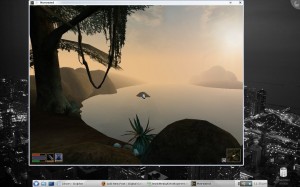
Me playing Morrowind in Linux

Me playing Morrowind in Linux

Life without Windows is certainly possible. I’m living proof. And the stuff I use my computer for is likely more intense than your average Joe since I’m a web developer. All of the required software that I use on a daily basis is available and runs great in Linux.

All of my games worked out-of-the-box using the Windows games and software emulator* (Read more about the Wine project). I’ve included a screenshot of me playing Morrowind. It runs great. My girlfriend and I played through Max Payne on this PC, as well, and we’re a quarter of the way through the Quest for Glory 2 remake (which is a lot of fun, by the way) on my other Mandriva Linux PC (our media center).

If you’re considering running Linux or if you’ve heard about it and are curious, give Mandriva Linux One a try. It’s pretty simple: You download it and burn it onto a blank CDR. Reboot with the disc in the drive and you can use it right off the disc without actually installing it. If you like it, go ahead and install it. Otherwise, just take the disc out and reboot — nothing has been changed on your computer.

For more information about Linux, try reading some of these sites:

* I realize Wine is technically not an emulator, but when explaining what it does it helps to use that term.

Reblog this post [with Zemanta]

Well, I’ve officially made the switch to Mandriva Linux.

Mandriva Logo
Image via Wikipedia

After years of dual-booting between Windows XP and Mandriva, I made the decision to bring the hammer down and get rid of the former. My original intention was to make the switch when I bought a new PC but my hand was forced as I came home from work on Friday to a locked-up Windows XP desktop that never came back.

Fear not: no data was lost as Mandriva can read Windows drives. I backed up my things onto my /home partition and waved goodbye.

It’s been a roller-coaster past with Windows XP. When it first came out, I irrationally hated it. Once I got used to it, I found it actually worked pretty well. Mostly. Sure, it lacked some of the neat features Mandriva had (rotating cube desktop, wallpaper playlists, etc.) and you never quite knew when the next time it would fail was, but it got the job done. Formatting was a bitch since most installs didn’t have a separate files and settings partition from the system partition and going through the hassle of calling India to promise them you only had one copy of it installed was always a treat.

When Vista came out I was put off by even more Digital Restriction Management (DRM) but wanted to see how it performed nonetheless. I can honestly say after using it at work for the past year and a half that it will never come close to being installed on my machines. So, that leaves us the little engine that could: Mandriva.

It’s been just over 2 days since breaking up with Windows XP and I have to say, I don’t miss a thing.

Reblog this post [with Zemanta]

Unlimited Awesome: Linux script to convert mods to mp3

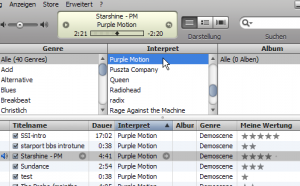
Listening to Purple Motion in iTunes :)

Listening to Purple Motion in iTunes :)

One day, Philipp Keller got fed up with installing sound libraries to listen to old-skool music files, so he decided to write a script that takes the hassle out of it and convert any mod to an mp3 file. Now you can download his script for free and use it on your own Linux box to convert your precious mod collection to mp3 for on-the-go listening.

Last.fm Integration

Playing your music modules as mp3 files has the added effect of allowing you to scrobble your music to Last.fm. Typically, playing anything but an mp3 causes Last.fm to disregard your tune. I know that if Last.fm or the WinAmp Audioscrobbler plugin took my mod playing seriously, I’d have a way different collection. Now I can.

Open source rules. Long live music modules!

Mandriva 2009.0 Is Almost Here!

The newest version of Mandriva is almost here! Released just a few days ago, the second release candidate of Mandriva includes the long awaited switch to KDE4. A release candidate, for those not aware, is the versions of Mandriva (and other software) that are considered nearest to the final cut. Once these final few versions pass with a minimum of bug reports, the software is released in full.

If you’re interested in trying out Mandriva Linux, you should try last season’s stable 2008.1 version. If you’re a current Mandriva user and want to see the latest and greatest (at the risk of system stability), check out 2009.0 RC2.

For more information, check out the DistroWatch page for Mandriva Linux.

See what KDE4 is all about:

Cron.log does not exist in /var/log

Currently, if you run Debian on a Slicehost server, the log file for cron tasks is disabled by default. I am not sure about other distributions on other hosts, or even other distributions on Slicehost. Regardless, here is how you re-enable cron logging on your slice.

  1. Navigate to /etc  (cmd: cd /etc)
  2. Back-up syslog.conf  (cmd: cp syslog.conf syslog.conf.bak)
  3. Edit syslog.conf  (cmd: pico syslog.conf)
  4. Remove the comment that disables this line: cron.* /var/log/cron.log
  5. Save the file and exit
  6. Restart the syslog daemon  (cmd: /etc/init.d/sysklogd restart)
  7. Check to make sure that the file /var/log/cron.log exists. This is where your log entries will be.

Enjoy!

Rpmdrake or one of its priority dependencies needs to be updated first. Rpmdrake will then restart.

If you ever go to add or remove software in Mandriva Linux and receive that error message, try this:

  1. Open up Konsole.
  2. Type “su” and enter your root password to move to the root account.
  3. Type “urpmi rpmdrake” and complete the install of the rpmdrake program.

For some reason, rpmdrake may get corrupted or may never have been installed. Regardless, this solved this error message for me and it may for you. Good luck!

linuX-gamers – Boot n’Play Linux Games Disc

This thing is really, really cool.

I saw on Distro Watch today the announcement of a new development version of the “boot n’play” Linux games DVD available for download and was instantly enthralled with the idea. It’s like having a free games console on your PC. You put the disc in, reboot, and play. Right off the DVD. You can save your savegame on your USB memory card. There are quite a few high-quality games included with this thing and a lot of them provide multiplayer fun. Check out the games list for further info.

If you’re looking for a change from the normal PC game scene, download the DVD torrent and start playing! Also, don’t forget to submit all the bugs you find in the bugtracker!

Have fun!